Viewing Pending Orders
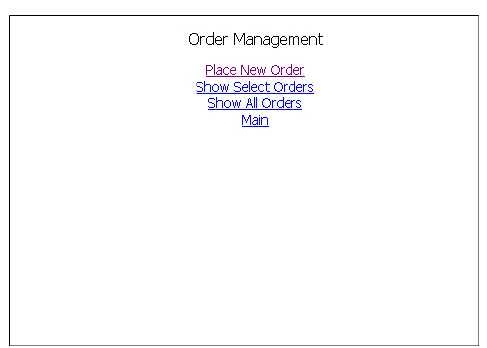
When you place an order, your order continues to work regardless of which MobileTrader screen is currently displayed. There are two ways to view your pending order(s):
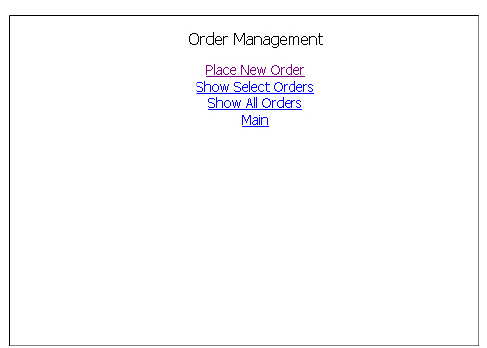
Both options are available from the Order Management menu.
To view pending orders by underlying symbol or order type
-
From the Main Menu, select Orders.
If you have no orders pending, selecting Orders will send you directly to the Find Asset page, where you enter an underlying symbol.
-
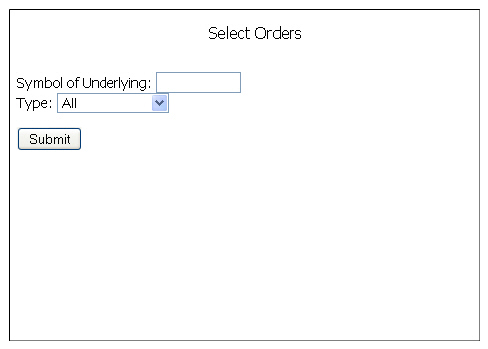
Select Show Select Orders. The Select Orders screen appears.
-
Enter an underlying symbol and/or select an asset type, then select Submit. By default, All is selected as the asset type.
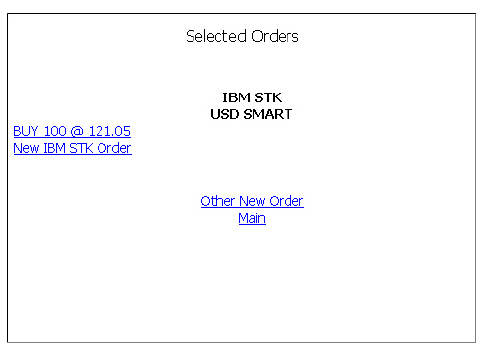
All orders that match the criteria you entered on the Select Orders screen that have been placed but have not yet been filled are displayed.
-
Select one of the following options from the left side of the screen or from the menu at the bottom of the screen. If necessary, scroll down to see the entire menu.
-
New ...Order to create a new order for the current contract.
-
Other New Order to create a new order
-
Main to return to the Main Menu.
To view all pending orders
-
From the Main Menu, select Orders.
If you have no orders pending, selecting Orders will send you directly to the Find Asset page, where you enter an underlying symbol.
-
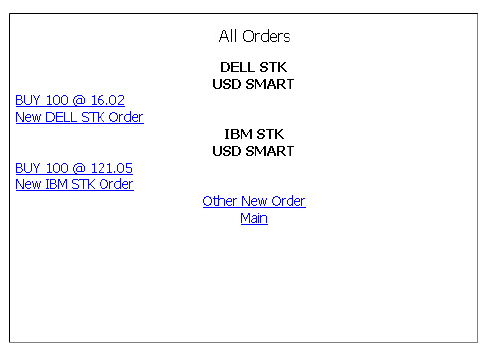
Select Show All Orders.
All orders that have been placed but have not yet been filled are displayed.
-
Select one of the following options from the left side of the screen or from the menu at the bottom of the screen. If necessary, scroll down to see the entire menu.
-
New ...Order to create a new order for the current contract.
-
Other New Order to create a new order
-
Main to return to the Main Menu.